
If you’re looking to sell products that come different sizes and colours, you’ll want to take advantage of the variable products feature in GiftSite. Unlike a simple product a variable product will present the customer with options to choose from on the product page. This type of product listing is perfect for items such as clothing.
What is a variable product? #
A variable product is a product that has a number of variations. For example, if you were selling t-shirts, you might have a single product listing for the t-shirt, but offer different variations such as size or colour. This allows your customers to choose the exact product they want, and also makes it easier for you to manage your inventory.
To create a variable product you’ll need to log in to your GiftSite dashboard and navigate to the Products section. From there, click the “Add New” button to create a new product.
Once you’ve created a new product, you’ll need to scroll down to Product Type. In the dropdown menu, select “Variable product”. This will enable the “Variations” tab.
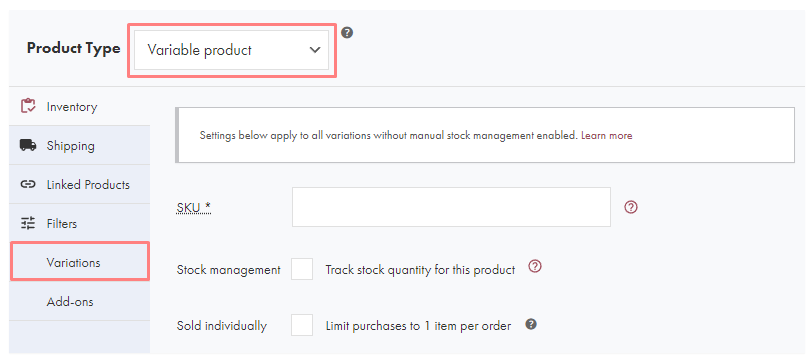
Variations are created from attributes which can be found underneath the Filters tab. You can create your own attributes, however GiftSite launches with a broad range that should meet most requirements. Under the “Filters” tab, you will find a dropdown menu that can be used to select an attribute from the list. Your GiftSite has the following attributes preconfigured:
- Age
- 1st – 18th
- 21st
- 30th
- 40th
- 50th
- 60th
- 70th
- 80th
- 90th
- 100th
- Anniversary
- Diamond (60th)
- Golden (50th)
- Paper (1st)
- Platinum (70th)
- Ruby (40th)
- Silver (25th)
- Colour
- Black
- Blue
- Brown
- Green
- Multi
- Orange
- Pink
- Purple
- Red
- White
- Yellow
- Fragrance
- Citrus
- Festive
- Floral
- Fresh
- Fruit
- Spice
- Wood
- Occasion
- Anniversary
- Birthday
- Congratulations
- Engagment
- New Baby
- Sympathy
- Thoughtful
- Wedding
- Aunt
- Brother
- Daughter
- Father
- Grandad
- Grandma
- Mother
- Nephew
- Niece
- Sister
- Son
- Uncle
- Relationship
- Aunt
- Brother
- Daughter
- Father
- Grandad
- Grandma
- Mother
- Nephew
- Niece
- Sister
- Son
- Uncle
- Seasonal
- Christmas
- Easter
- Father’s Day
- Halloween
- Mother’s Day
- Valentines
- Size
- XX-Small
- X-Small
- Small
- Medium
- Large
- X-Large
- XX-Large
- XXX-Large
- Theme
- Animals
- Artist
- Cars
- Cute
- Fantasy
- Flowers
- Humour
- Music
- Party
- Pop Culture
- Space / Sci-Fi
- Sport
- Water
Let’s add the Colour attribute to a product. Click the Add existing attribute dropdown menu and select Colour from the list. Click in the Values(s) field and you will be presented with a list of various colours. Add as many as you need and click “Save filters” ensuring that “Use for variations” is ticked.

Next, under the “Variations” tab, click the “Add variation” button and select “Create variations from all attributes”. You’ll see a warning pop up, click OK.
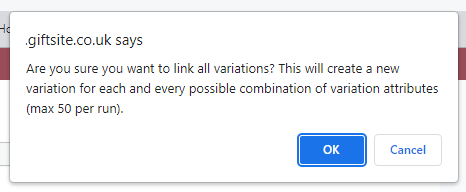
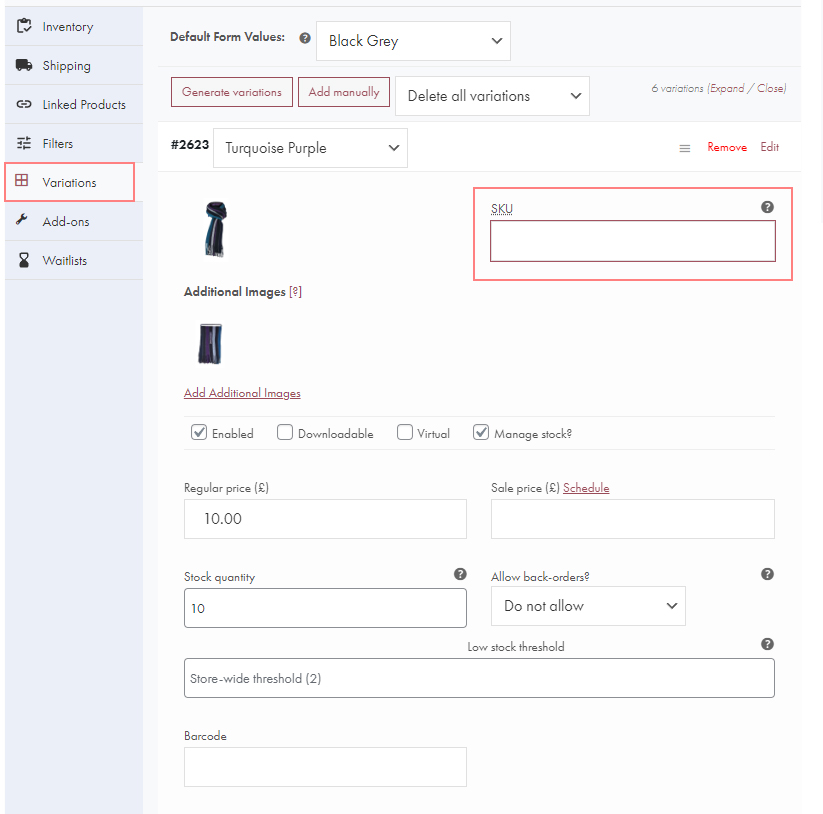
GiftSite will create variations from the attributes you set up in the previous step. These variations are products in their own right and will need information like images, prices, stock levels etc. This allows you to customize each variation to match the specific product you’re offering.
If you want a blue version of your product to appear when the customer selects “blue” from the options on the product page, you should add a blue image to the blue variation. Click on the image place holder to access the media library. From here you can upload your own images and attach them to the variations.

You will need to add a SKU (Stock Keeping Unit) to your variation. It’s best to align your SKUs with those of your supplier. This makes maintaining stock levels easier. If you are generating your own SKUs, It’s best practice to make them descriptive. A SKU for a small blue t-shirt might look like this: 12456-BLU-S. At a glance you can tell the size and colour of this item.

When you have finished editing your variations make sure you save your changes. The button to do this is at the bottom of the variations editor. Please see the screen shot below. Once your variations are saved you can save the entire product by clicking the green “Update” button.

Parent / Child Relationship #
When talking about variable products it is common to refer to a parent-child relationship. For a t-shirt the relationship may look like this:
- Parent – T-Shirt
- Child – Blue T-Shirt
- Child – Red T-Shirt
- Child – Green T-Shirt
In this example the t-shirt parent has three children – blue, red and green. Your customer would see these children (or variations) on the product page in a dropdown box. An item of clothing usually comes in a variety of sizes. If your t-shirt has three sizing options, small, medium and large, the relationship looks like this.
- Parent – T-Shirt
- Child – Blue / Small T-Shirt
- Child – Red / Small T-Shirt
- Child – Green / Small T-Shirt
- Child – Blue / Medium T-Shirt
- Child – Red / Medium T-Shirt
- Child – Green / Medium T-Shirt
- Child – Blue / Large T-Shirt
- Child – Red / Large T-Shirt
- Child – Green / Large T-Shirt
And that’s it! With just a few clicks, you’ve created a variable product in GiftSite. Now your customers can choose the exact product they want, and you can easily manage your inventory.

Troubleshooting #
You may see errors when you try to save your variable product. Here are some solutions to some common problems:
Missing SKU

Your variations must have a SKU. We recommend using the SKU or product code defined for the variation by your supplier. If your supplier has not provided a SKU, we recommend generating a “smart SKU” that describes the specifics of variation. A small blue t-shirt SKU might look like this: 12345-BLU-S.
Put your SKUs in the SKU field on each variation:
Missing Barcode
If you see the following error you will need to enter barcodes against your variants.

The barcode field is located in the variations tab. Highlighted in the image below:

If you can not see the barcode field within your variation, you will need to enable “stock management” under the Inventory tab:

Conclusion #
Creating a variable product in GiftSite is a great way to offer your customers more options and make it easier for you to manage your inventory. With just a few simple steps, you can create a product that comes in multiple variations, allowing your customers to choose the exact product they want. So go ahead and give it a try!


